

 11
11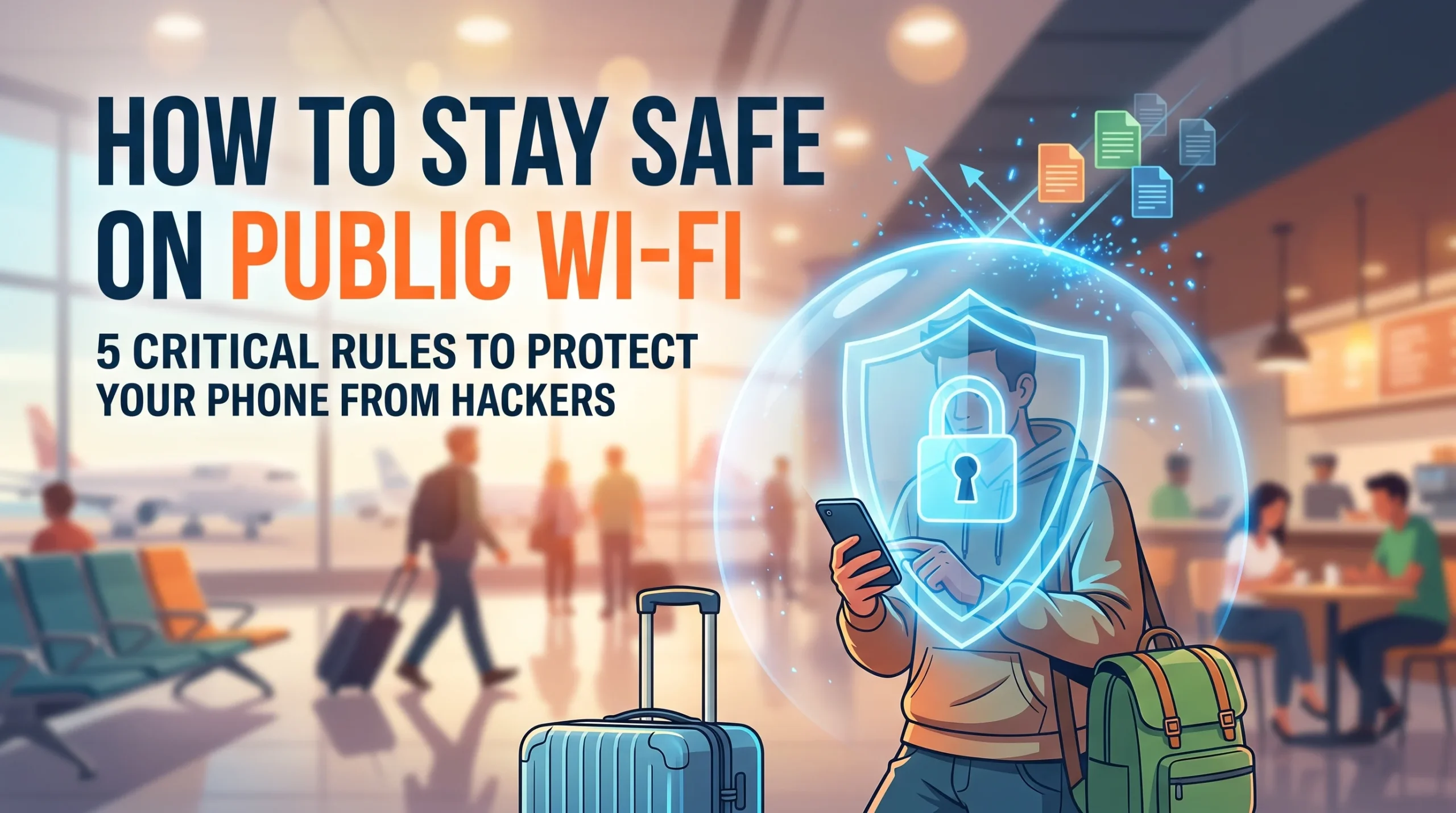
Picture this: You are sitting at an airport terminal, waiting out a two-hour flight delay. Your cellular signal is spotty, your battery is draining, and you want to stream a show or quickly check your work emails. You open your phone’s network settings, and there it is: Free_Airport_HighSpeed_WiFi. No password required. You tap connect, breathe a sigh of relief, and continue scrolling.
It is a routine millions of people perform every day in cafes, hotels, train stations, and shopping malls. But here is the hard truth: connecting to an unsecured public Wi-Fi network is the digital equivalent of leaving your front door wide open in a busy city center.
Free public Wi-Fi provides convenience, but it also creates the ideal playground for cybercriminals. With minimal equipment and basic tools, an attacker sharing the same network can intercept your data, steal your login credentials, or even inject malware onto your smartphone.
Protecting your personal data does not mean you have to abandon public networks altogether. By understanding the real risks and following five non-negotiable rules, you can browse freely without handing your personal life over to hackers.
Most home and office networks rely on strong encryption standards like WPA2 or WPA3. To join, a device needs a secret passphrase, and once connected, traffic between your phone and the router is shielded from everyone else in the room.
Open public Wi-Fi flips that model on its head. In public networks:
When you connect under these conditions, you expose your device to several common cyber threats:
Starbucks_Guest_WiFi vs. Starbucks_Free_WiFi). Once you connect to the decoy, the attacker controls everything you do online.A while ago, I was stuck at a train station with basically zero mobile reception and an urgent email to send. I saw an open network called ‘Station_Free_WiFi’, tapped connect without a second thought, and went on with my day. It wasn’t until later that evening. When I got a random security ping about someone trying to sign into my mailbox from two cities over—that it hit me how careless I’d been. The problem isn’t that free internet is bad; it’s that we trust names on a screen that literally anyone with a cheap travel router can fake in two minutes. If a network doesn’t ask for so much as a basic room number or a code on your receipt, treat it like an open room full of strangers.
If you only adopt one habit from this guide, make it this one: never use public Wi-Fi without an active Virtual Private Network (VPN).
A VPN creates an encrypted tunnel between your smartphone and a secure remote server. When your VPN is turned on:
Smartphones are built to make life effortless. By default, iOS and Android devices constantly probe their surroundings for known networks and open hotspots, connecting automatically whenever an open signal appears.
While convenient, this automation works against your security. Hackers take advantage of it by setting up open routers that broadcast generic names your phone might recognize (such as Linksys, Airport_Free, or standard hotel network labels). Your phone links up without you ever taking it out of your pocket.
Years ago, plain HTTP was the web standard, meaning anyone watching the network could see passwords and visited pages in clear text. Today, most websites use HTTPS, which encrypts the connection between your browser and the web server via TLS (Transport Layer Security).
However, hackers on a public Wi-Fi network can deploy a tactic called SSL Stripping. This technique silently downgrades your connection from secure HTTPS to unencrypted HTTP without warning you, leaving your activity visible.
https:// before typing any sensitive information.Even with a VPN and HTTPS active, practicing operational discipline is your best safety net. The simplest way to stop a hacker from stealing your banking credentials on public Wi-Fi is to never enter them in the first place.
Public networks are fine for low-stakes tasks: reading articles, checking sports scores, checking flight schedules, or streaming videos. They are the wrong place for high-value actions:
If you urgently need to pay a bill, transfer funds, or buy something online, turn off Wi-Fi and switch to your mobile cellular data (4G/5G).
Cellular connections use built-in, carrier-level encryption and dedicated frequencies that are vastly more difficult for local bad actors to intercept. Using a few megabytes of mobile data is a small price to pay for complete peace of mind.
Security is not a single barrier; it is a system of layers. If an attacker manages to capture your password through a sophisticated rogue hotspot or phishing page, strong account-level security stops them dead in their tracks.
Two-Factor Authentication ensures that knowing a password is not enough to break into your account. Even if a cybercriminal logs your credentials on a fake cafe portal, they cannot log in without the second factor.
Cybercriminals frequently exploit unpatched security flaws in mobile operating systems and web browsers to compromise connected devices.
3 Smart Ways to Build Passive Income & Grow Wealth Today
If your phone starts behaving strangely after connecting to an untrusted network—such as sudden battery drain, random pop-up ads, unauthorized password reset emails, or unexpected logouts—take immediate action:
Public Wi-Fi is not going anywhere. It remains an essential modern convenience when traveling, studying, or working remotely. But treating public hotspots with the caution they warrant is what separates informed users from easy victims.
By keeping a reliable VPN turned on, turning off automatic connection settings, sticking to HTTPS, saving banking for mobile data, and hardening your accounts with two-factor authentication, you make your smartphone an impenetrable target. You do not need to avoid the digital world—you just need to lock your digital doors before stepping into the crowd.


One thought on “How to Stay Safe on Public Wi-Fi: 5 Critical Rules to Protect Your Phone from Hackers”