

 111
111 2
2 3
3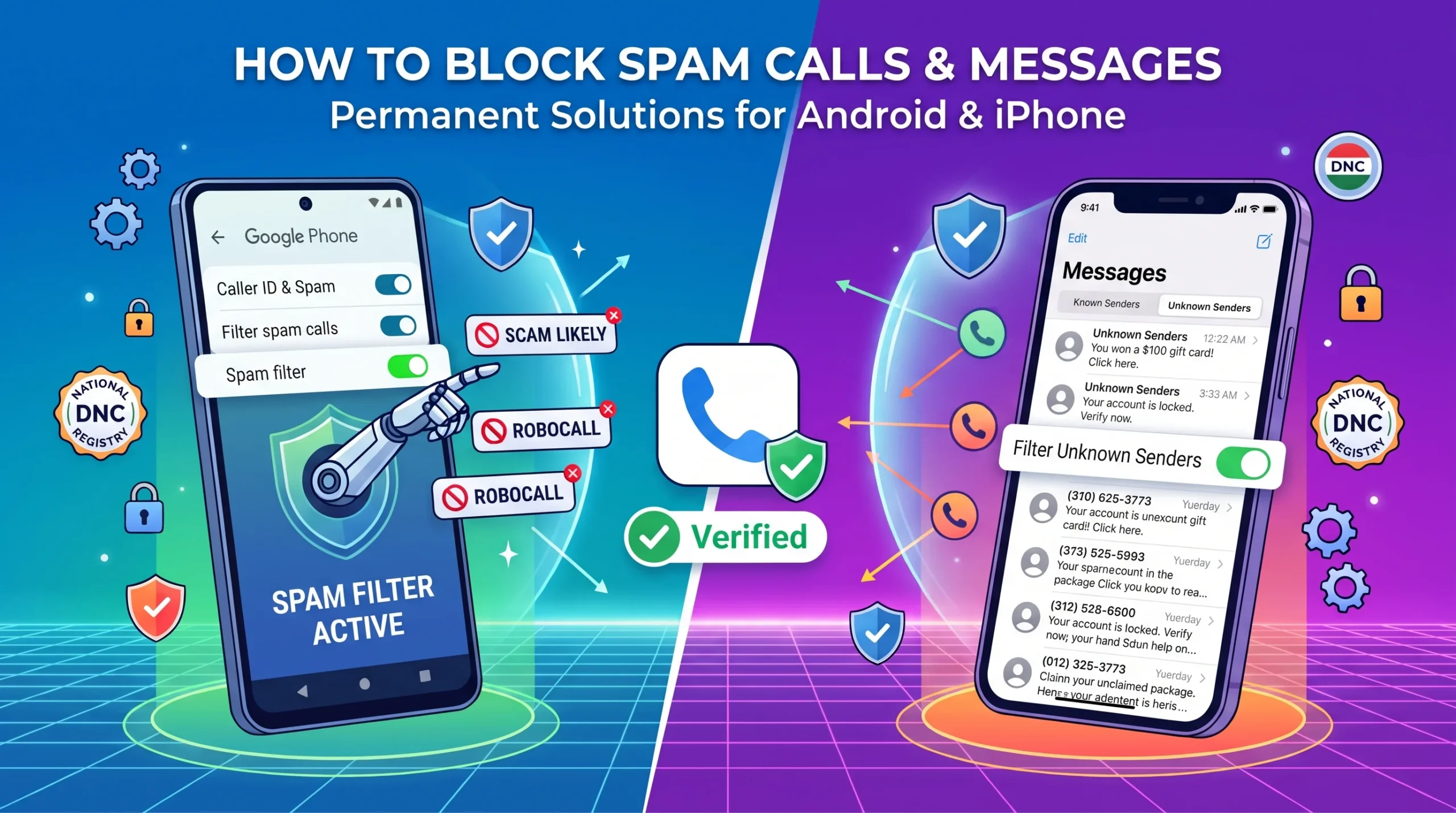
Few things ruin focus faster than a phone buzzing in the middle of a busy workday, only to reveal an automated robocall pitching health insurance or a text claiming you won an unclaimed lottery prize. Telemarketing calls, phishing scams, and promotional SMS blasts have shifted from an occasional nuisance to a daily invasion of privacy. Beyond being annoying, they pose genuine security risks to personal credentials and financial data.
A few months ago, I was getting at least five to six spam calls every single day. Most were automated robocalls, and some were blatant bank scams. It got so annoying that I stopped picking up calls from numbers I didn’t recognize. That is when I decided to test every setting on my phone to fix this for good. The methods I have shared below are the exact steps that brought my spam calls down to almost zero.
The good news is that you do not have to leave your phone on airplane mode just to enjoy some peace. Both Android and iOS carry sophisticated, native filtering engines designed to intercept these bad actors before your screen even lights up. By pairing built-in device tools with carrier registries and crowd-sourced databases, you can permanently shut down the influx. Here is a definitive, zero-fluff guide to blocking spam calls and messages on your smartphone for good.
Before stopping the influx, it helps to understand why your number ended up on telemarketer lists in the first place. Every time you enter a phone number to get a retail discount, sign up for a contest, create an account on a digital storefront, or fill out online forms, your data is routinely packaged and sold across third-party broker networks.
Data scraping bots also comb through public directories, social media profiles, and domain registrations. In other cases, automated dialers simply generate and call sequential blocks of random numbers to see which lines connect. Once you pick up an automated call—even just to say “hello” or press a button to unsubscribe—the dialer flags your line as active, triggering even more spam.
Android features one of the most proactive, Google-backed anti-spam frameworks available. If your device runs stock Android (Google Pixel, Motorola) or uses the Google Phone app, you already possess a robust, automated defense layer.
Google’s database uses algorithmic analysis to detect suspicious caller behavior across millions of active handsets. Enabling automated spam filtering stops these calls before your phone can ring:
With this setting active, suspected spam calls are blocked silently in the background. They will not ring, vibrate, or wake your screen, though you can still see them cataloged quietly in your call history if you ever need to audit them.
Persistent telemarketers often use local numbers that slip past initial automated filters. When a rogue call breaks through, block it immediately at the system level:
Doing this both blacklists the number on your local device and transmits an anonymous spam report back to the broader Android registry to protect other users.
Apple approaches unwanted interruptions by placing strict boundaries around caller authenticity. Rather than trying to guess whether an unknown number is friendly, iOS lets you systematically isolate verified contacts from complete strangers.
Introduced to tackle relentless automated calling rings, this built-in iOS setting is the single most effective barrier against robocaller:
[Incoming Call] ──> Is number in Contacts, Mail, or recent Outgoing?
                        │
         ┌──────────────┴──────────────┐
        YES                            NO
         │                             │
    Rings Normally              Silenced Silently
                                (Sent to Voicemail & Recent)
Once enabled, any incoming call from a number not saved in your Contacts, found in your outgoing emails, or listed in recent outgoing calls will be silenced without ringing your phone. The caller is diverted directly to your voicemail, leaving a silent notification in your Recents tab so legitimate callers can still reach you with a message.
Phishing attempts (smishing) via text message are just as common as rogue phone calls. iOS contains a dedicated filing system that separates verified message threads from unsolicited bulk SMS:
Open the native Messages app after enabling this. You will see your messages split into tabs: Known Senders and Unknown Senders. Notifications for unknown texts are muted automatically, keeping spam links out of your daily sightline.
I personally use Truecaller alongside my phone’s default settings. While the native features do a decent job, they often miss local telemarketers who change their numbers frequently. What works best for me is setting Truecaller to auto-reject top spammers. It saves me the trouble of even having to glance at my screen when someone is cold-calling.
While native tools handle basic filtration, third-party identification apps provide deep, real-time protection against localized, dynamic, and spoofed spam numbers. Among these, Truecaller remains the most comprehensive cross-platform tool.
Truecaller relies on a global, community-driven database of over 350 million active users. When a telemarketing firm buys a block of numbers to launch a tele-campaign, users flag those numbers instantly.
Truecaller calculates a real-time “Spam Score” for incoming calls. If an incoming caller has already been tagged by hundreds of other users within the past hour, the app flags the call on your screen as “Top Spammer” or outright drops the line before your device registers an alert.
To get complete protection from Truecaller across both operating systems:
On Android:
On iPhone:
System and software-level blocks work best when complemented by regulatory enforcement. Most national telecommunications authorities require licensed telemarketers to scrub their calling lists against official Do Not Call (DNC) registries. Adding your number makes unsolicited marketing calls illegal under regional consumer protection laws.
| Country / Region | Regulatory Body | How to Register |
| United States | Federal Trade Commission (FTC) | Visit donotcall.gov or call 1-888-382-1222 from the number you wish to protect. |
| India | Telecom Regulatory Authority of India (TRAI) | Send an SMS reading START 0 to 1909, or register via your mobile carrier’s DND portal. |
| Pakistan | Pakistan Telecommunication Authority (PTA) | Send an SMS reading REG to 3627 to block unsolicited commercial communications, or forward spam texts with sender details to 9000. |
| United Kingdom | Telephone Preference Service (TPS) | Text TPS along with your email address to 85095, or register online at tpsonline.org.uk. |
Note: DNC registries legally bind legitimate commercial enterprises. They will drastically reduce legitimate marketing calls from banks and telecom providers, but rogue criminal syndicates running scams will ignore them—which is why your on-device software filters must remain active.
Eliminating mobile spam does not require technical expertise—it simply requires using the defensive layers already built into your device alongside regulatory registries. Set your native Android or iOS filters to handle basic filtering, install a crowd-sourced caller ID engine to catch active bad actors, and lock in your number on your national DNC registry to establish legal boundaries against corporate telemarketers.
If you take away just one piece of advice from my experience: never pick up a call just to yell at the person on the other end, and never click a link in a text message to ‘unsubscribe’. Spammers simply want to confirm that a real person uses your number. Let your phone’s built-in filters do the heavy lifting, and your days will be a lot quieter.



One thought on “How to Block Spam Calls and Messages on Android & iPhone (Permanent Solutions)”