

 11
11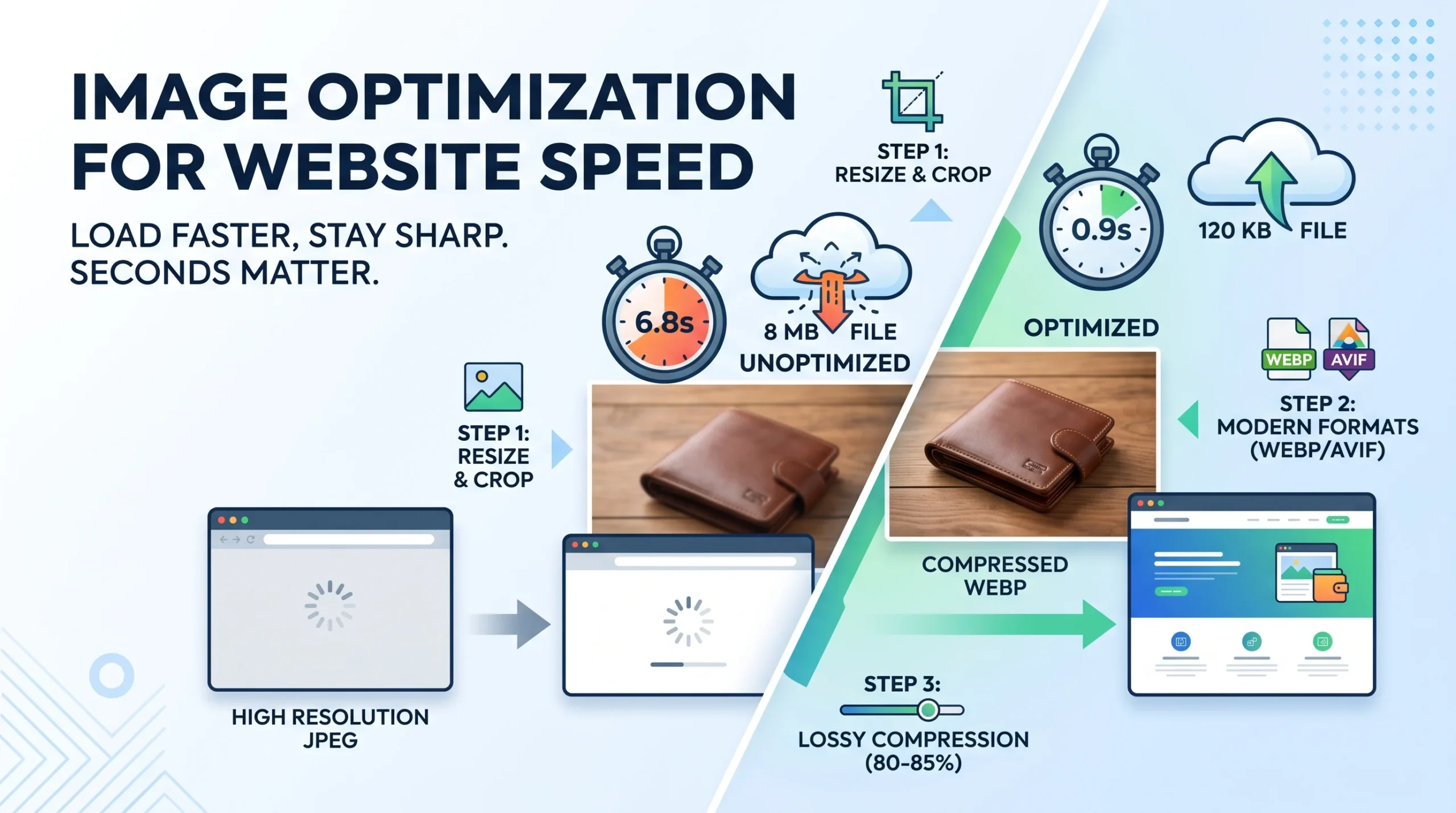
Imagine this: You click on a link expecting quick information, but the web page stutters. The text loads, but the hero banner creeps down the screen line by line like it’s 1998 on a dial-up modem. What do you do? Most likely, you hit the “back” button and look for another link.
You are not alone. Studies consistently show that a single second delay in page load time can tank conversions by up to 7% and send bounce rates through the roof. And the number one culprit behind bloated, sluggish websites almost always comes down to unoptimized images.
Many site owners believe they face a painful choice: crisp visuals or lightning-fast speed. But that is a false dilemma. You can keep your website looking sharp on retina displays while shaving megabytes off your payload.
Here is a practical, fluff-free guide to optimizing your website’s images for top-tier speed without turning your visuals into a pixelated mess.
A modern smartphone shoots photos at 12 to 48 megapixels. A standard DSLR shoots even higher. When you export an untouched image straight from your camera, Canva, or Photoshop, the file size often lands somewhere between 4 MB and 15 MB, with dimensions like 6000 × 4000 pixels.
Now consider this reality check:
When you upload a 4000-pixel wide photo to display in an 800-pixel blog container, the browser still has to download all 8 MB of raw data before resizing it down with CSS. You force your visitor’s phone to burn data, churn its processor, and wait—just to show a picture that could look identical at 120 KB.
I will be honest: early in my web design career, I made this exact rookie mistake. I built a portfolio site for a local photographer, proudly uploading pristine 10 MB raw files straight from Light room so her photos would look ‘untouched.’ A week later, she called me asking why her clients on mobile were complaining the gallery took 15 seconds to load. When I finally ran the page through Google PageSpeed Insights, it scored an embarrassing 18 out of 100. Resizing the dimensions and switching to WebP cut the total page weight from 84 MB down to barely 2.1 MB and the site loaded instantly. The client couldn’t tell any difference in sharpness, but her booking inquiries jumped immediately.
Before touching compression sliders or fancy formats, resize the actual pixel dimensions of the image to match the maximum width it will ever be displayed.
Suppose you run an e-commerce shop selling handmade leather wallets. If you snap a photo with your mirrorless camera, it might be 5200 × 3467 pixel at 6.8 MB. Resizing it down to 1200 × 800 pixel, without even compressing it yet—will immediately drop that file from 6.8 MB down to around 850 KB. That’s an 87% reduction purely from discarding pixels your users’ screens can’t even display.
For two decades, the web relied on two giants: JPEG for photos, PNG for graphics with transparency. Today, those formats are outdated for primary web delivery.
A lot of creators are terrified of the word “lossy” because they think it means “ruined.” In reality, human eyes are terrible at spotting minor variations in color gradients, especially on small screens.
When exporting JPEGs or WebPs, set the quality slider to 80% to 85%.
If you are still nervous about dropping quality down to 82%, do what our team does whenever a sceptical client pushes back: run a blind test. We put a 100% uncompressed PNG next to an 82% WebP on a 4K monitor and challenge the team to guess which one is compressed. In three years, nobody has guessed correctly on their first try. The human eye simply can not catch the micro-adjustments in flat gradients, but your server bills and your users’ mobile data plans certainly will.
7 Best Micro-Budgeting Apps to Track Daily Expenses Automatically
srcset)A desktop user on high-speed fiber internet and a mobile user walking through a subway station on spotty 4G should not be served the exact same image file.
HTML provides a native solution: the srcset attribute.
HTML
<img
  src="wallet-800.webp"
  srcset="wallet-400.webp 400w,
          wallet-800.webp 800w,
          wallet-1200.webp 1200w"
  sizes="(max-width: 600px) 400px,
         (max-width: 1000px) 800px,
         1200px"
  alt="Handmade brown leather bi-fold wallet"
  loading="lazy"
>
When you use srcset, the browser automatically checks the user’s screen resolution and connection speed, then downloads only the version that makes sense. WordPress and modern headless CMS platforms (like Shopify or Ghost) generate these variations automatically.
Why load 15 images at the bottom of your article if the reader hasn’t even scrolled past the intro yet?
Lazy loading delays the loading of images outside the user’s view port until they scroll close to them.
You no longer need clunky JavaScript libraries for this. Modern browsers support native lazy loading with a simple HTML attribute:
HTML
<img src="product.webp" alt="Leather wallet interior" loading="lazy">
Never lazy load your “above-the-fold” hero image. If an image is visible the moment the page loads, adding loading="lazy" will delay your Largest Contentful Paint (LCP) score, hurting both user experience and Google Core Web Vitals rankings. For that primary hero banner, keep it normal or even preload it:
HTML
<link rel="preload" as="image" href="hero-banner.webp">
You don’t need to manually edit every image in Photoshop for hours. Here’s the setup that actually works:
Before pushing any image live to your website, run through this 5-point checklist:
loading="lazy" for below-the-fold images and set explicit width and height attributes to prevent layout shift (CLS)?Optimizing images isn’t about compromising visual aesthetics; it’s about respecting your visitors’ time and bandwidth. Once you bake these habits into your publishing routine, your pages will feel instant, your bounce rates will drop, and search engines will reward you for it.