


Popular Posts

What to Check Before Buying a Used Laptop: Checklist for Office & Coding (2026)

Look, we have all been there: you see a clean, sleek ThinkPad or Latitude on Facebook Marketplace for an unbelievable price, and your finger immediately hovers over the message button. But here’s the harsh reality—used tech is a minefield. Sellers have gotten really good at wiping smudges off the lid, hiding dying batteries, and masking thermal issues just long enough to collect your cash and vanish. Before you hand over a single rupee or dollar, you need to treat the deal like an inspection, not a simple pickup.

Buying a used laptop is one of the smartest ways to get solid computing power without spending flagship money. Business machines like Lenovo ThinkPads, Dell Latitudes, and HP EliteBooks are built to take a beating, and enterprise lease cycles mean hundreds of clean, reliable laptops hit the used market every week.

However, buying second-hand is also a minefield. Sellers hide dying batteries, repaired motherboards, thermal throttling, and locked firmware behind a clean exterior wipe.

If you are buying a used laptop for office tasks, programming, compiling code, or multitasking across dozen-tab browser setups, here is the complete, practical checklist of what to inspect—including the hidden traps most buyers overlook.
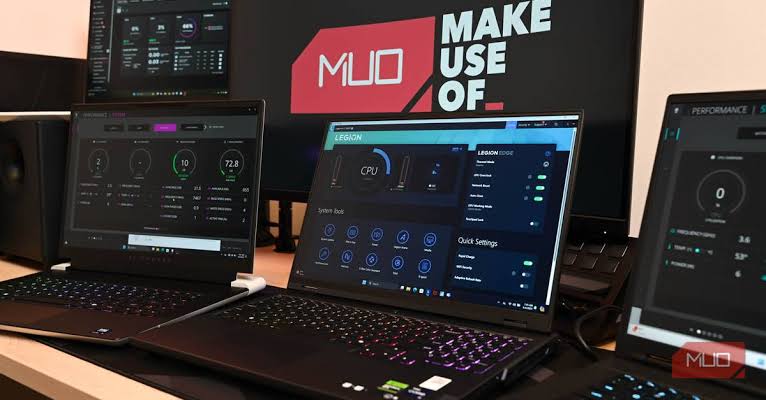
Running diagnostics on used laptop. Source: Makeuseof

1. The Dealbreakers: Firmware and Account Locks

Before checking specs or battery health, check the machine’s root access. If you get caught by any of these, you have bought a fancy paperweight:

  • BIOS / UEFI Password: Reboot the laptop and mash the BIOS key (F2, F12, or Delete depending on the brand). If it prompts for an administrator password, walk away immediately unless the seller can unlock it right in front of you. A locked BIOS prevents you from changing boot drives, enabling virtualization (VT-x/AMD-V) for Docker and WSL, or updating firmware.
  • Computrace / Absolute Persistence: Inside the BIOS security tab, look for Absolute Persistence or Computrace. It must say Disabled or Deactivated. If it says Active or Enabled, the laptop may belong to an enterprise fleet and can be remotely locked or bricked without warning.
  • MDM / Cloud Locks: On Windows machines, make sure Windows isn’t tied to an enterprise tenant (e.g., asking for an organization email during setup). On MacBooks, ensure Find My is signed out, iCloud is removed, and there is no Mobile Device Management (MDM) profile installed under System Settings.

2. Processor and Hardware Thresholds

Do not waste money on obsolete architectures, no matter how cheap they appear.

Use CaseMinimum CPURecommended RAMStorage Type
Basic Office Work (Excel, Docs, Zoom)Intel Core i5 (8th Gen+) or AMD Ryzen 3000+8 GB DDR4256 GB NVMe SSD
Web / App Development (VS Code, Node.js)Intel Core i5 (10th/11th Gen+) or Ryzen 4000+16 GB DDR4/DDR5512 GB NVMe SSD
Heavy Engineering / Docker6-core / 8-core CPU or Apple Silicon (M1/M2/M3)16 GB – 32 GB1 TB NVMe SSD
  • The 8th Gen Cutoff: Avoid 6th or 7th Gen dual-core Intel chips (e.g., i5-7200U). Intel’s 8th Gen (like the i5-8250U or i5-8350U) doubled the core count to four cores and eight threads, which is the baseline for modern multitasking. It is also the official cutoff for supported Windows 11 installations.
  • Apple Silicon vs. Intel Macs: Never buy an Intel-based MacBook today unless it is virtually free. An entry-level base M1 MacBook Air completely outclasses 2019/2020 Intel i7/i9 MacBooks in sustained battery life, heat dissipation, and compilation speeds.

‘Never rush a meet-up. If a seller starts giving you the “bhai jaldi karlo, another buyer is waiting” routine, take a step back. A legitimate seller with nothing to hide will comfortably let you sit down, connect to a mobile hotspot, and run your diagnostics for 15 or 20 minutes. If they get fidgety the moment you plug in a flash drive to check temps or drive health, wrap it up and walk away. Peace of mind is worth more than a cheap deal.’

3. Upgradability vs. Soldered Parts

A classic trap in slim modern laptops is soldered memory.

Check the exact model number online before meeting the seller. Laptops like the ThinkPad T480 or Dell Latitude 5400 feature dual SODIMM slots, allowing you to upgrade from 8 GB to 32 GB or 64 GB down the road for cheap. Conversely, machines like the Dell XPS 13 or ThinkPad X1 Carbon often have soldered RAM. If you buy a soldered 8 GB laptop for programming, you will run into severe memory paging issues the moment you spin up Docker containers, local databases, and IDEs simultaneously.

4. Battery Health and Charger Authenticity

Laptop batteries degrade over time, and replacing an internal battery can add $40 to $80 to your total cost.

  • Generate a Windows Battery Report: Open Command Prompt as Administrator and run:powercfg /batteryreportOpen the generated HTML file in a browser. Compare the Design Capacity to the Full Charge Capacity. If the capacity has degraded past 25–30% of its original rating, factor a replacement battery into your negotiation.
  • Check Cycle Count on Mac: Click the Apple icon > About This Mac > System Report > Power. Look at the cycle count. Anything above 800 cycles is approaching the end of its reliable lifespan.
  • Check the Power Adapter: Cheap third-party replacement chargers deliver erratic voltages, create touchpad jitter while plugged in, and degrade battery cells. Make sure the charger is an original OEM brick (Lenovo, Dell, HP, Apple) and inspect the cable for kinks or exposed wiring near the barrel or Type-C connector.

Cold Outreach Templates That Actually Get Replies 


5. Thermal Throttling and Stress Testing

Laptops used in dusty environments or run hard for years often have dried thermal paste and clogged heatsink fins. A machine might feel fast while opening Notepad, only to drop clock speeds to a crawl under sustained load.

  • Carry a USB drive loaded with portable diagnostic utilities: HWiNFO, CrystalDiskInfo, and Cinebench (or FurMark).
  • Run a CPU benchmark for 5–10 minutes while monitoring temperatures in HWiNFO.
  • Modern laptop CPUs can spike to 90°C–95°C temporarily, but if the machine instantly hits 98°C–100°C and thermal throttles back to 1.2 GHz under basic load, the cooling system is failing or completely clogged. Listen closely: does the fan spin up smoothly, or does it rattle, grind, or whine?

6. Storage Health and Read/Write Abuse

Hard drives (HDDs) have no place in a modern workstation—insist on an SSD.

Launch CrystalDiskInfo from your flash drive to check the health status of the internal NVMe or SATA SSD. It will show you:

  • Health Percentage: Anything under 80% indicates heavy lifetime writes.
  • Total Host Writes: Excessive writes (hundreds of terabytes on a budget drive) indicate the drive was stressed or used for constant cache paging.
  • SMART Errors: Look for reallocated sectors or uncorrectable error counts.

7. Display, Keyboard, and Port Diagnostics

Office work and coding mean staring at the screen and typing for 8+ hours a day. Small defects become massive irritations over time.

  • Screen Defects: Pull up a pure white screen and a pure black screen (use dead pixel test websites or fullscreen image files). Look for:
    • Stuck or dead pixels.
    • Pressure marks: Bright white patches caused by keys pressing against the LCD panel in a crowded backpack.
    • Coating wear: Noticeable on MacBooks (known as “staingate”) where the anti-reflective coating peels off in patches.
  • Keyboard Test: Open a keyboard testing tool online (or an offline utility like Keyboard Test Utility) and hit every single key, including Fn combos, Spacebar edges, Tab, and Backspace. Coders rely heavily on brackets ({, }, [, ]), backticks (`), and modifiers (Ctrl, Alt). Make sure none stick or fail to register.
  • Hinges and Chassis: Open and close the lid slowly. Does the hinge creak, wobble excessively, or cause the plastic frame near the base to separate? Broken hinge mounts inside plastic housings are common on budget machines.
  • Port Verification: Plug a flash drive into every USB port, verify the HDMI output functions on an external monitor if possible, and verify that the Type-C port supports charging and data transfer.

8. The “Repaired Motherboard” Tell-Tale Signs

A lot of laptops on the market are resurrected units that suffered liquid spills or short circuits:

  • Check the bottom screws. Are they stripped, mismatched, or missing? That indicates an amateur repair.
  • Sniff the exhaust vents. A strong burnt electronic smell or the chemical aroma of cheap rosin flux means the motherboard has undergone component-level soldering or heating.
  • Check the webcam and microphone in the Windows Camera app. Liquid damage frequently kills the top-bezel camera ribbon cable first.

At the end of the day, cosmetic scuffs and surface scratches don’t break code or slow down spreadsheets. A beaten-up top lid with pristine internals and an unlocked BIOS is a million times better than a polished, showroom-clean machine that throttles to a crawl or locks you out a week later. Do your homework, run the checks, and don’t fall for shiny shells.


One thought on “What to Check Before Buying a Used Laptop: Checklist for Office & Coding (2026)”

Leave a Reply

Your email address will not be published. Required fields are marked *